Blog
Your digital postman sets up your inbox for e-invoices, but one step nobody can take for you: you have to select the provider yourself in the Financial Administration's application. It takes a few minutes. We show where to click, what to fill in and where the selection most often gets stuck.
We describe the procedure according to the Financial Administration's user guide to the application (version of 20 October 2026) and its answers to frequently asked questions about e-invoicing of 10 November 2026. The screens may change over time, and the application itself is in Slovak, so we give the names of its buttons in Slovak. If you are not sure who may act for your company, ask your accountant or tax adviser.
What VPDS is and why the selection is yours to make
VPDS is the web application for selecting a certified delivery service provider (“Aplikácia pre výber certifikovaného poskytovateľa doručovacej služby”) at vpds.financnasprava.sk. In it, a taxpayer states which provider it has chosen, and the Financial Administration sends that provider the company's verified identification data.
For receiving e-invoices, the Financial Administration says the selection through its portal is mandatory. Only someone who acts for the company on the Financial Administration's portal can make it, which is why the provider cannot do it for you.
What to have ready
- Access to the Financial Administration's portal. You sign in with the same account as to your personal internet zone: through slovensko.sk (an ID card with a chip, a residence card with a chip or the Slovensko v mobile app), or with an identifier and a password.
- Authorisation to act for the company. The selection offers only the entities you act for on the portal.
- The company's DIČ. An entity without an assigned and notified tax identification number cannot be selected.
- An e-mail address and a phone number to give as the company's contact details.
Selecting the provider step by step
- Open vpds.financnasprava.sk. You see the list of certified delivery service providers and their intermediaries. It is visible without signing in.
- Find your provider. Type its name into the search field (“Vyhľadávanie v zozname”) and click Výber in its row. Check the provider's details and go on with Pokračovať.
- Sign in as you do to the Financial Administration's portal. On first use the application asks you to confirm its access to your data; you cannot continue without it.
- Choose the taxpayer you are making the selection for. The application shows its company ID (IČO), DIČ and address.
- Fill in the contact details: e-mail and phone. Both fields are required, and the phone number is entered in the international format, for example +421 9xx xxx xxx.
- Give permission for the application to pass the company's data to the selected provider. Press Povoliť.
- Check the summary and send it with Pokračovať. The application confirms that the request has been sent.
What happens after you submit
- A message arrives in your message box on the Financial Administration's portal (“Odoslanie žiadosti pre výber certifikovaného poskytovateľa doručovacej služby”). It includes a verification code.
- The provider gets an e-mail and an automatic notification of your selection with the contact details you entered.
- The selection is not a contract in itself. The Financial Administration describes it as an initial expression of interest that does not replace concluding a contract with the provider. If you selected by mistake, tell the selected provider; you can repeat the selection with another one at any time.
Where the selection most often gets stuck
I only see my sole-trader business, not my company. You have no authorisation on the portal to represent the company. Registering as a user and being authorised for a company are two separate steps. You apply for the authorisation in the portal's personal internet zone or in person at the tax office.
The company has no DIČ. Ask the tax office for income tax registration. The Financial Administration assigns a DIČ within 30 days of the application at the latest, in practice often sooner.
The provider has not been in touch. If the automatic notification to the provider cannot be delivered, you get a message about it. In that case the Financial Administration recommends repeating the selection.
The DIČ already has an inbox with another provider. A DIČ can have only one provider for receiving. A change is a matter of contracts: once the contract ends, the original provider must deregister the company within 3 working days at the latest, and the new one then registers it.
The accountant is to make the selection. They can, if they are authorised to act for the company on the Financial Administration's portal.
How the selection works with Planmee eFaktúra
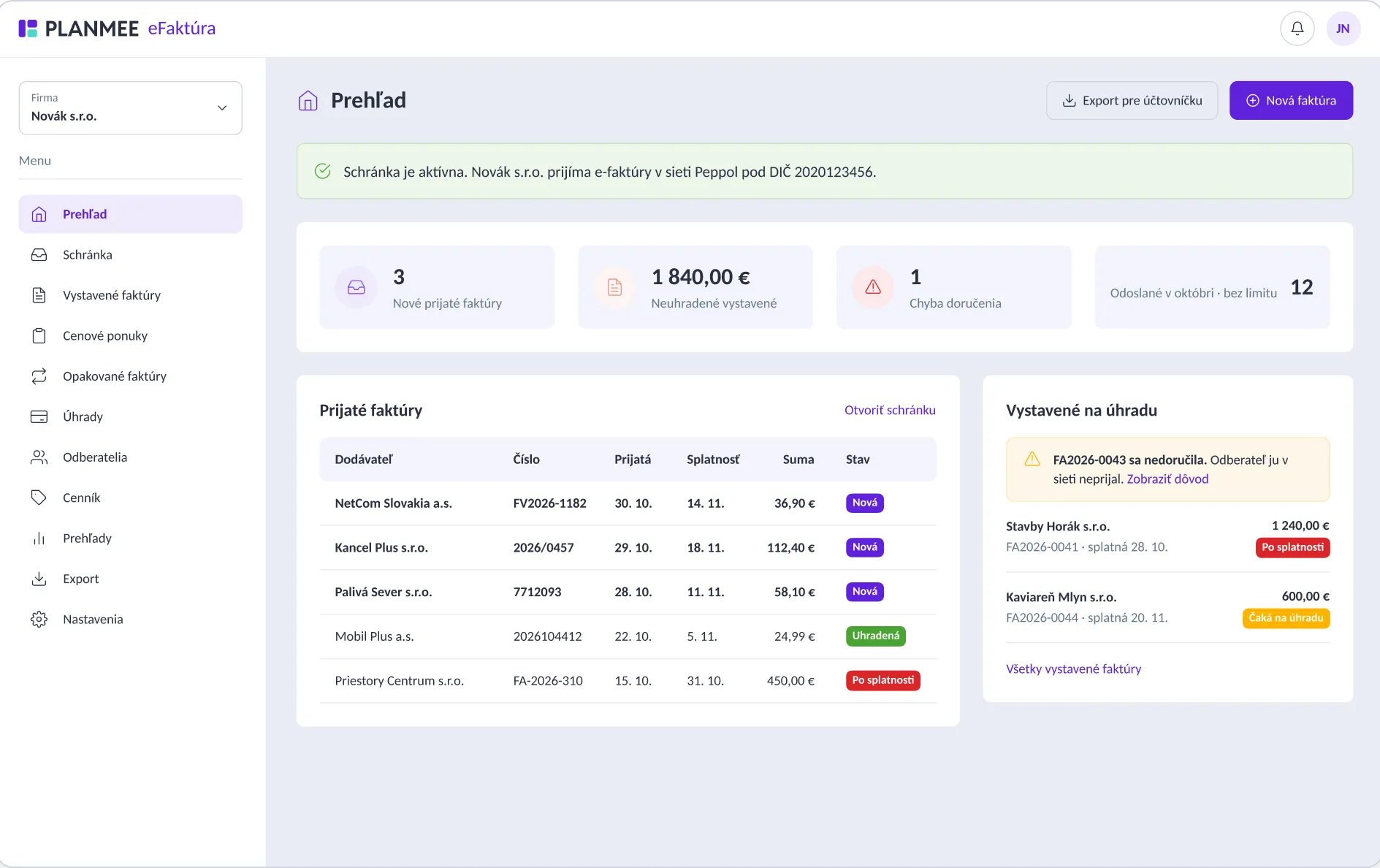
In Planmee eFaktúra the selection is part of the registration, and the application leads you to it:
- You create an account and we find the company by its IČO.
- At the network registration step you open VPDS straight from eFaktúra. Select Planmee s. r. o. in the list and choose your company.
- In the E-mail field of the contact details, enter the address you sign in to eFaktúra with. The same step verifies that you may act for the company, and nothing else is needed.
- The Financial Administration does not redirect you back after you submit; just return to the tab with eFaktúra. It usually notifies us of the selection within a minute, we finish the registration ourselves and e-mail you that the inbox is active.
If a different e-mail is entered in the selection, for example because your accountant made it, we do not activate the inbox right away: first it has to be confirmed that the selection belongs to your account. We send a confirmation request to the address that was entered. You can also repeat the selection with the right e-mail, or verify the company with a payment of €0.01 from its bank account.
Receiving e-invoices in eFaktúra is free. We have summed up everything that changes on 1 January 2027 in Slovak e-invoicing from 1 January 2027: what businesses must do.
Subscribe to our newsletter
Stay up to date with our latest articles and product updates, please subscribe to our blog newsletter.
Share